Everything beginners need to choose their first graphic tablet with confidence and start drawing digitally right away.
Picking your first graphic tablet can feel scary with so many options and confusing tech terms. Beginners often worry about wasting money on something too hard to use or buying the wrong size. Don't stress—this guide cuts through the noise.
Graphic tablets let you draw on a computer like paper, but with digital perks like easy erasing and endless undo. You'll go from confused shopper to confident artist.
We'll cover what matters for newbies, top picks on Amazon, accessories, mistakes to dodge, and your growth path. By the end, you'll know exactly what to buy.
📋 In This Guide
• Why Beginners Struggle with Graphic Tablet
• What to Look For (Key Features)
• Top 4 Beginner-Friendly Graphic Tablet
• Essential Accessories for Beginners
• Common Beginner Mistakes to Avoid
• Your Progression Path
• FAQ & Learning Resources
😰 Why Beginners Struggle with Graphic Tablet
Beginners feel overwhelmed by endless brands like Wacom, XP-Pen, Huion, and GAOMON, plus terms like 'pressure sensitivity' and 'active area.' Reviews mix pro and newbie needs, so it's hard to know what's essential.
Many fear a steep learning curve—will the pen feel natural? Small tablets seem cheap but frustrating for art; big ones too pricey. Forums like Reddit's r/DigitalPainting show newbies quitting after buying wrong sizes or glitchy drivers.
The big fear? Spending $50+ on something that gathers dust because it's not intuitive or their computer hates it.
🔍 What to Look For: Key Beginner-Friendly Features
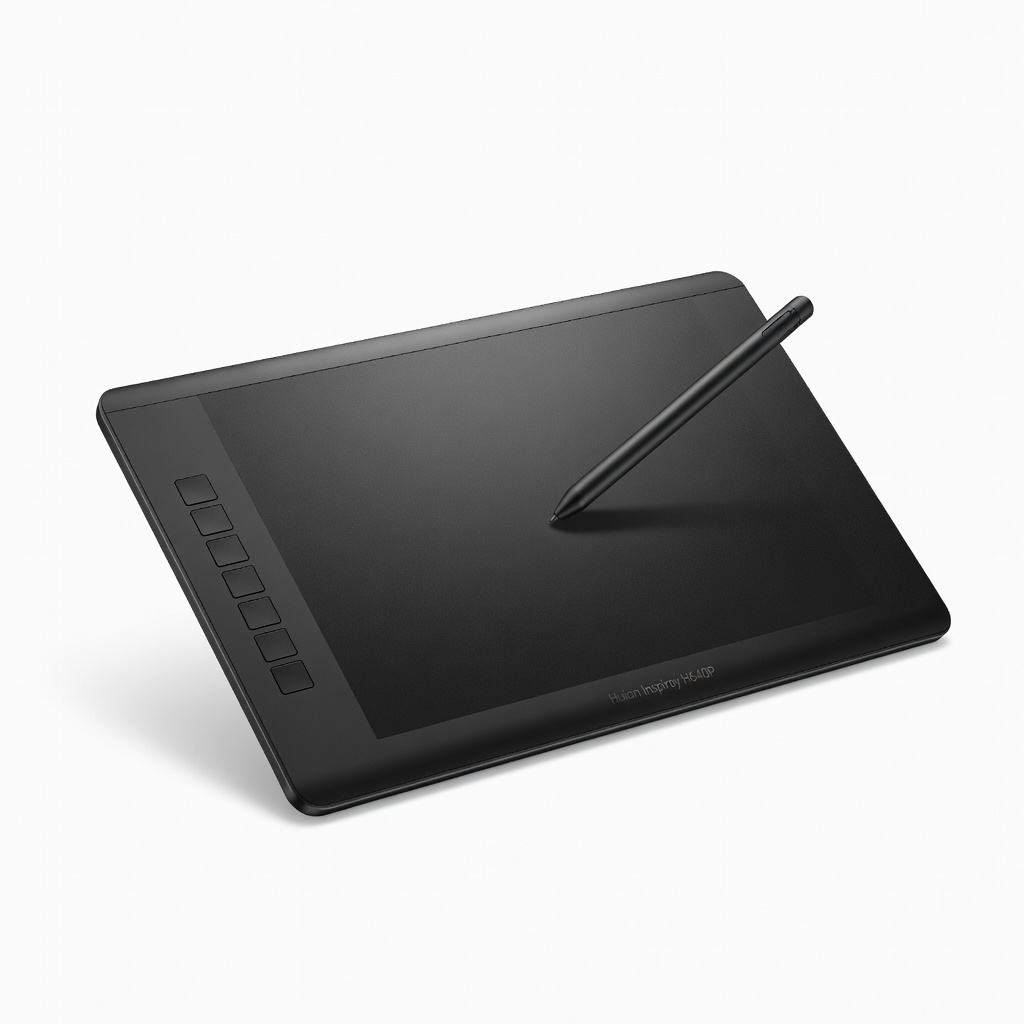
Focus on simple must-haves: battery-free stylus (no charging hassle), 8,192 pressure levels (smooth lines without pro skills), and 6x4 inch area (big enough for hands, small for desks). Look for plug-and-play drivers—no tech wizardry needed.
Nice-to-haves: tilt support and extra shortcut keys for faster workflow later. Skip screen tablets or pro models with 20+ buttons; they're overkill and intimidating.
Beginner-friendly means forgiving: good palm rejection (ignores hand rests), customizable software, and tutorials included. Check Amazon reviews for 'easy setup' from new users.
✅ Essential Features for Beginners
•Battery-free stylus: No charging means draw anytime without interruptions.
•Pressure sensitivity (at least 8,192 levels): Makes lines thick/thin naturally, like a pencil.
•6x4 inch active area: Perfect desk size, room to draw without feeling cramped.
•Palm rejection: Rest hand without accidental marks—huge for relaxed drawing.
•Plug-and-play drivers: Works instantly on Windows/Mac, no fiddly installs.
•Extra nibs included: Replacements for worn tips, lasts longer.
•Shortcut keys: 8-10 buttons speed up zoom/undo without mouse.
🏆 Top 4 Best Graphic Tablet for Beginners
#1
💰 Budget
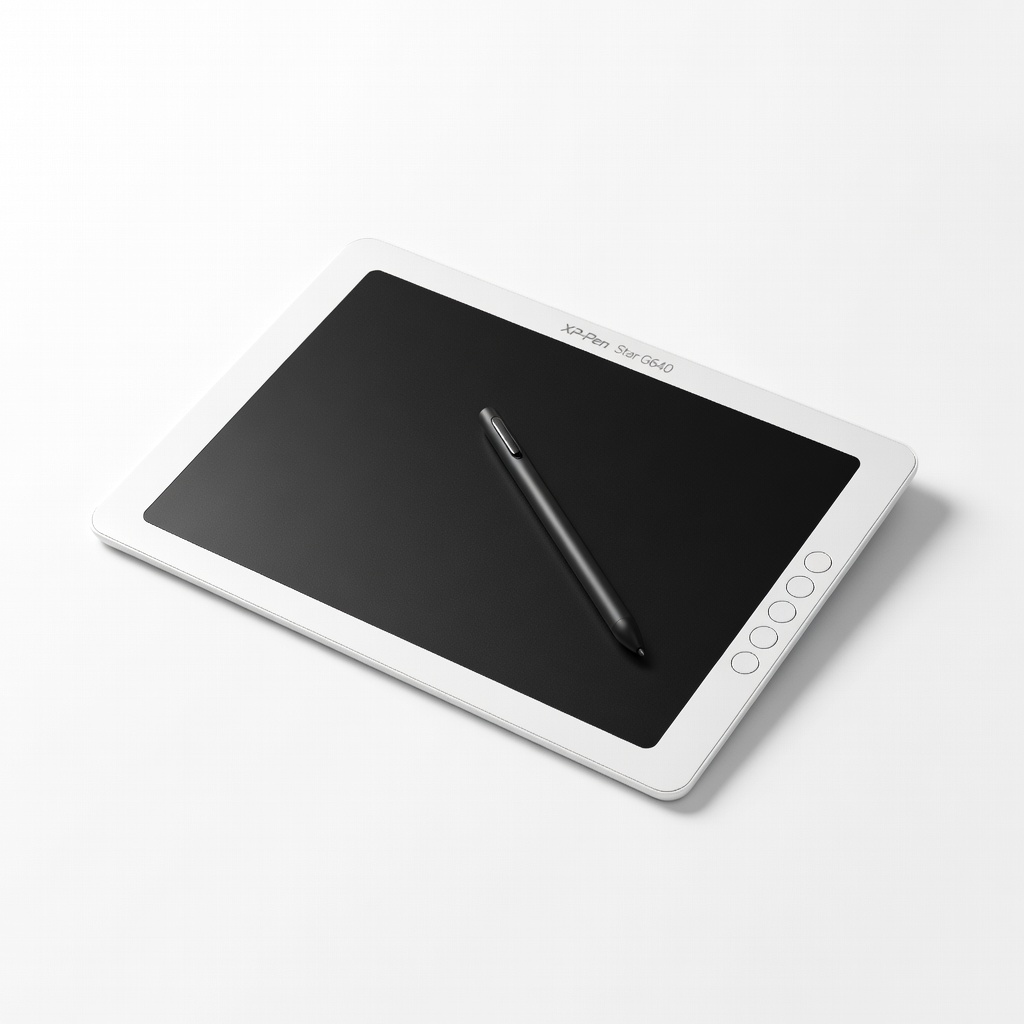
XP-Pen Star G640 6x4 Inch Graphics Drawing Tablet
Learning Curve: Easy
$32.99
Difficulty: 1/5
Why Great for Beginners:
Perfect entry point with simple setup and natural pen feel. Small but spacious for basic sketches. Includes free software trials to start immediately.
✓ Beginner Pros
+Super cheap to test hobby
+Battery-free pen always ready
+Plug-and-play easy
+Extra nibs included
✗ Beginner Cons
-Small area cramps big drawings
-No tilt support
-Basic drivers
👍 Best for: Total newbies testing digital art on tiny budget
👎 Not for: Those wanting larger canvas or pro features
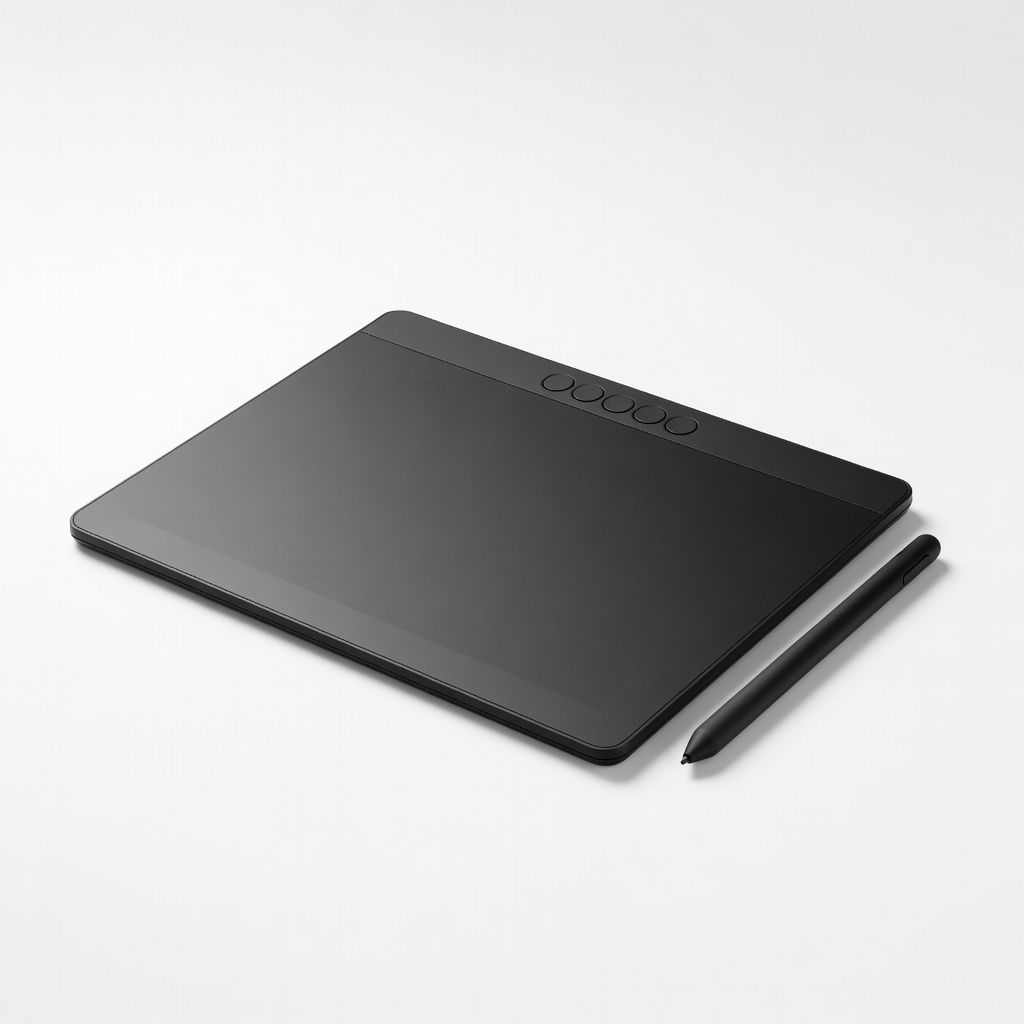
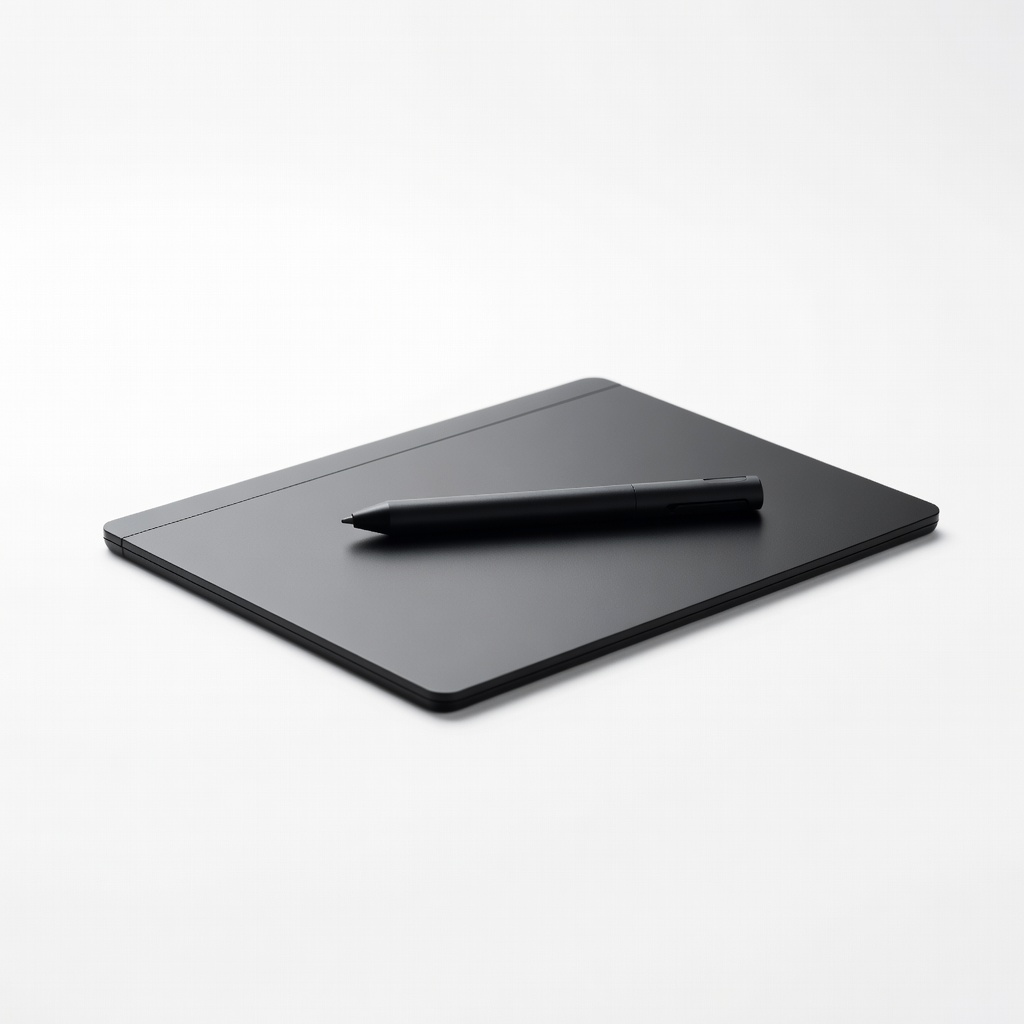
A graphic tablet is a flat pad with a stylus pen that tracks your drawing onto software like Photoshop or Krita. No screen on it—you look at your computer. Basics: plug USB, install driver, draw away.
Types: Non-display (best for beginners—affordable, portable), display (screen tablets—pricier, more natural but heavy). Stick to non-display first; 90% of newbies thrive here.
Beginner-friendly = intuitive pen feel, reliable software, community support. Expect wobbly lines at first (like learning guitar), but practice fixes it. Evaluate by size (start 6x4), brand rep (XP-Pen/Huion reliable), and refund policy.