Review Atlas
Review AtlasYour guide to a better purchase

Menu

Shop by Category

Get the App

Better experience on mobile

Beginners GuideGaming

7 Best Best Mouse (Computer) for beginners in 2026: Tested & Ran…

Everything beginners need to know to choose their first gaming mouse with confidence.

Choosing your first gaming mouse can feel overwhelming with all the technical jargon and countless options. You might wonder: Do I need a wired or wireless mouse? What DPI means? Why are some mice so expensive? This guide is designed to simplify your decision. We'll explain what features actually matter for beginners, recommend the best mice for different budgets, and help you avoid common mistakes. By the end, you'll feel confident picking the perfect mouse to start your gaming journey.

📋 In This Guide

  • • Why Beginners Struggle with Mouse (Computer)
  • • What to Look For (Key Features)
  • • Top 5 Beginner-Friendly Mouse (Computer)
  • • Essential Accessories for Beginners
  • • Common Beginner Mistakes to Avoid
  • • Your Progression Path
  • • FAQ & Learning Resources

😰 Why Beginners Struggle with Mouse (Computer)

Many beginners get lost in specs like DPI, polling rate, and sensor types. Marketing terms like 'gaming-grade' and 'ultra-light' add confusion. Fear of buying the wrong product often leads to either overspending on unnecessary features (like a $150 mouse when a $30 one would suffice) or buying a cheap, low-quality mouse that feels unresponsive and breaks quickly. The sheer number of options—from ergonomic shapes to RGB lighting—can be paralyzing. Beginners also often overlook essential accessories like a good mouse pad, which greatly impacts performance.

🔍 What to Look For: Key Beginner-Friendly Features

As a beginner, focus on three key qualities: comfort, reliability, and simplicity. Look for a mouse that fits your hand size and grip style (palm, claw, or fingertip). Wired mice are cheaper and more reliable (no battery worries), while wireless offers freedom of movement. Avoid mice with too many buttons (more than 5-6 can be confusing). A good sensor (most modern optical sensors are fine for beginners) and adjustable DPI (800-1600 is typical for gaming) are must-haves. Don't worry about 'speed' or 'weight' too much; start with a medium-weight mouse (80-100g) and forgo RGB if it adds cost. Beginner-friendly features include simple software for remapping buttons and customizable DPI settings.

✅ Essential Features for Beginners

  • Comfortable shape – fits your hand size and grip style (palm, claw, fingertip).
  • Reliable wired connection – no latency or battery issues, typically cheaper.
  • Adjustable DPI – lets you change sensitivity (800-1600 is a good range).
  • Few extra buttons (2 side buttons) – easy to learn and useful for basic actions.
  • Good build quality – durable switches and braided cable (for wired).
  • Simple software – easy to adjust settings without confusion.
  • Affordable price – under $50 is ideal for starters.

🏆 Top 5 Best Mouse (Computer) for Beginners

#1
💰 Budget

Logitech G203 Lightsync

Learning Curve: Easy

$24.99
Difficulty: 1/5
Logitech G203 Lightsync - Image 1 of 8

Why Great for Beginners:

Affordable, durable, and simple – perfect for first-timers. Its symmetrical shape fits most hands, and the 6 programmable buttons are easy to learn. The RGB lighting is a fun bonus, but not distracting.

Beginner Pros

  • +Very affordable – low risk for trying out gaming mice
  • +Simple software (Logitech G Hub) with easy DPI switching
  • +Reliable build quality and responsive clicks
  • +Works well for all game genres

Beginner Cons

  • -Wired only – cable can feel restrictive
  • -Not the lightest (85g) – might feel heavy after long sessions
👍 Best for: Beginners on a tight budget or who want a no-frills mouse to learn
👎 Not for: Those who need wireless or want a very lightweight mouse

#2
👍 Recommended

Razer DeathAdder V2

Learning Curve: Easy

$49.99
Difficulty: 2/5
Razer DeathAdder V2

Why Great for Beginners:

Ergonomically designed for palm grip – the most common grip for beginners. Its 20,000 DPI optical sensor is more than enough for any game, and the 8 programmable buttons offer room to grow without being overwhelming. Solid build and comfortable for long sessions.

Beginner Pros

  • +Very comfortable for medium-to-large hands
  • +Excellent sensor with no tracking issues
  • +Braided cable reduces drag
  • +Software (Razer Synapse) is intuitive for beginners

Beginner Cons

  • -Right-handed only – lefties may struggle
  • -Heavier than some modern mice (82g)
👍 Best for: Beginners who want a reliable, comfortable mouse for FPS and general gaming
👎 Not for: Left-handed gamers or those wanting a lightweight mouse
#3
✨ Premium

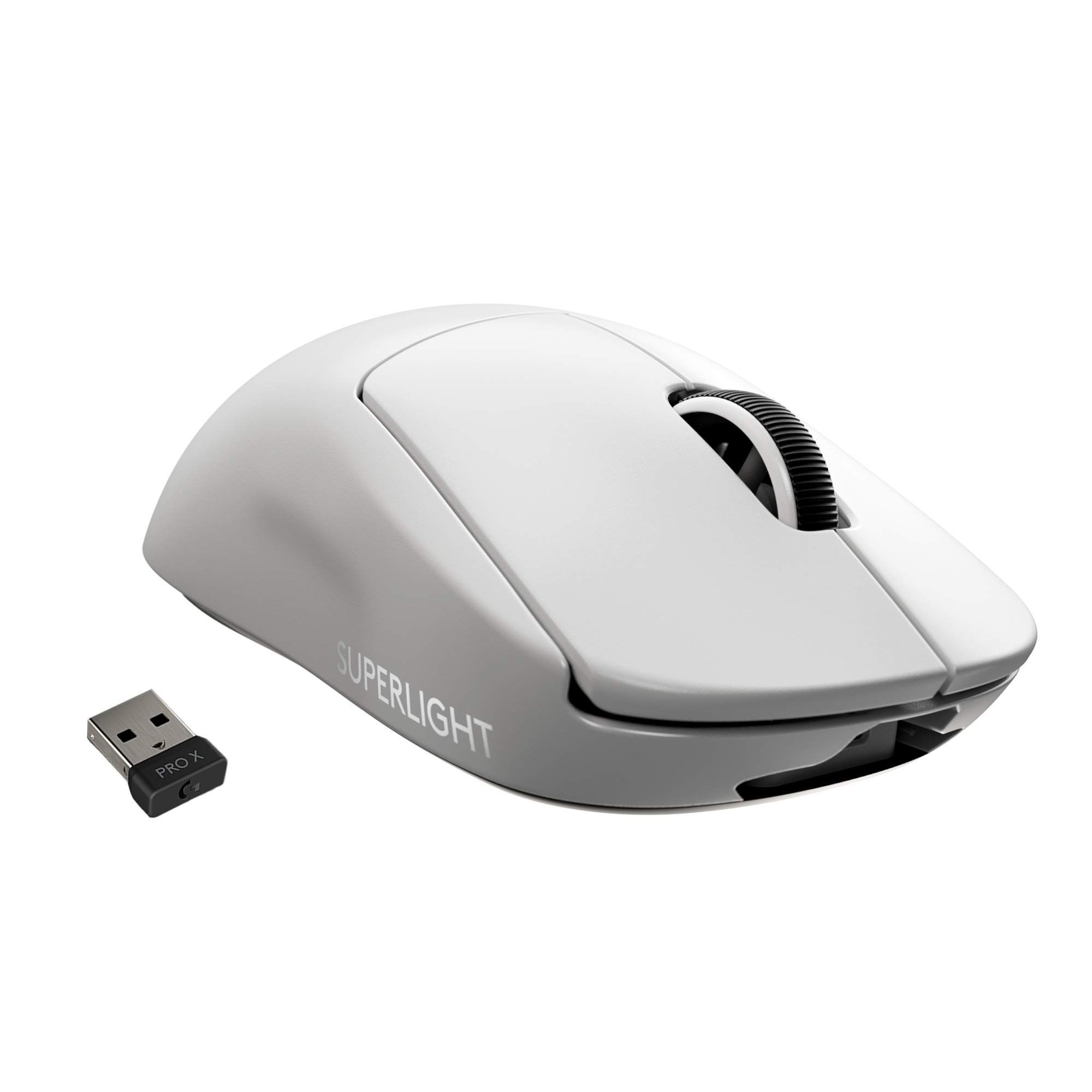
Logitech G Pro X Superlight

Learning Curve: Easy

$139.99
Difficulty: 1/5
Logitech G Pro X Superlight

Why Great for Beginners:

Extremely lightweight (63g) reduces fatigue, and its simple design (5 buttons) prevents confusion. The Hero sensor is top-notch, and wireless performance is flawless. Great for beginners who plan to play a lot and want the best without interruption.

Beginner Pros

  • +Very lightweight – easier to move for quick reactions
  • +Wireless freedom without noticeable lag
  • +Long battery life (70 hours)
  • +Minimalistic design – no unnecessary features

Beginner Cons

  • -Expensive – overkill for casual play
  • -No RGB (some may miss it)
  • -Requires dongle – extra USB port needed
👍 Best for: Beginners with larger budgets who want a premium, long-lasting mouse
👎 Not for: Budget-conscious beginners or those who want many buttons
#4
Alternative

Razer Basilisk X Hyperspeed

Learning Curve: Easy

$39.99
Difficulty: 2/5
Razer Basilisk X Hyperspeed - Image 1 of 6

Why Great for Beginners:

Affordable wireless mouse with great battery life (450 hours on a AA battery). Its ergonomic shape and 6 buttons offer a good balance. Perfect for beginners wanting to try wireless without a high price.

Beginner Pros

  • +Wireless at a budget-friendly price
  • +Long battery life (up to 450hrs with Bluetooth)
  • +Comfortable for medium hands
  • +Dual connectivity (Bluetooth and 2.4GHz)

Beginner Cons

  • -Uses AA battery – adds weight (108g)
  • -No RGB lighting (if desired)
👍 Best for: Beginners who want wireless on a budget
👎 Not for: Those who need lightweight or rechargeable mouse
#5
Alternative

Corsair Harpoon RGB

Learning Curve: Easy

$29.99
Difficulty: 1/5
Corsair Harpoon RGB

Why Great for Beginners:

Compact and affordable, the Harpoon RGB fits small to medium hands well. Its 6 buttons and comfortable texture make it great for beginners. The RGB lighting adds a fun touch without extra cost.

Beginner Pros

  • +Low price with good build quality
  • +Comfortable for smaller hands
  • +Simple software (iCUE) for customization
  • +Lightweight (85g) and easy to control

Beginner Cons

  • -Wired only – not ideal for wireless preference
  • -Limited button count (6)
👍 Best for: Beginners with small hands or on a strict budget
👎 Not for: Users with large hands who need more buttons

📖 Complete Beginner's Guide to Mouse (Computer)

Gaming mice differ from regular office mice mainly in sensor accuracy, button responsiveness, and ergonomics. For beginners, the most important factor is comfort: if the mouse doesn't feel good in your hand, you'll perform poorly. Grip styles: palm grip (whole hand on mouse), claw grip (arched hand, fingertips on buttons), and fingertip grip (only fingertips contact). Most beginners start with palm grip, so a medium-to-large ergonomic mouse is recommended.

Wired vs. wireless: Wired mice are simpler, cheaper, and have no input lag or charging hassles. Wireless mice offer freedom but require batteries or charging; modern wireless is nearly lag-free but costs more. Beginners should typically start with a quality wired mouse under $50.

Sensor: Most gaming mice now use optical sensors that track well on almost any surface. Specs like 16,000 DPI are overkill for beginners; 4,000 DPI is plenty. Just ensure the mouse doesn't skip or spin out.

Weight: Lighter mice (under 70g) are trendy but harder to control for novices. 80-100g is a sweet spot.

Software: Some mice require software to adjust settings; choose one with intuitive software (e.g., Logitech G Hub, Razer Synapse) that lets you change DPI, button mapping, and lighting easily.

Realistic expectations: A $30-50 mouse will serve you well for months; you don't need a $100+ mouse to enjoy gaming. Focus on learning mouse control and game mechanics before upgrading.

🔧 Essential Accessories for Beginners

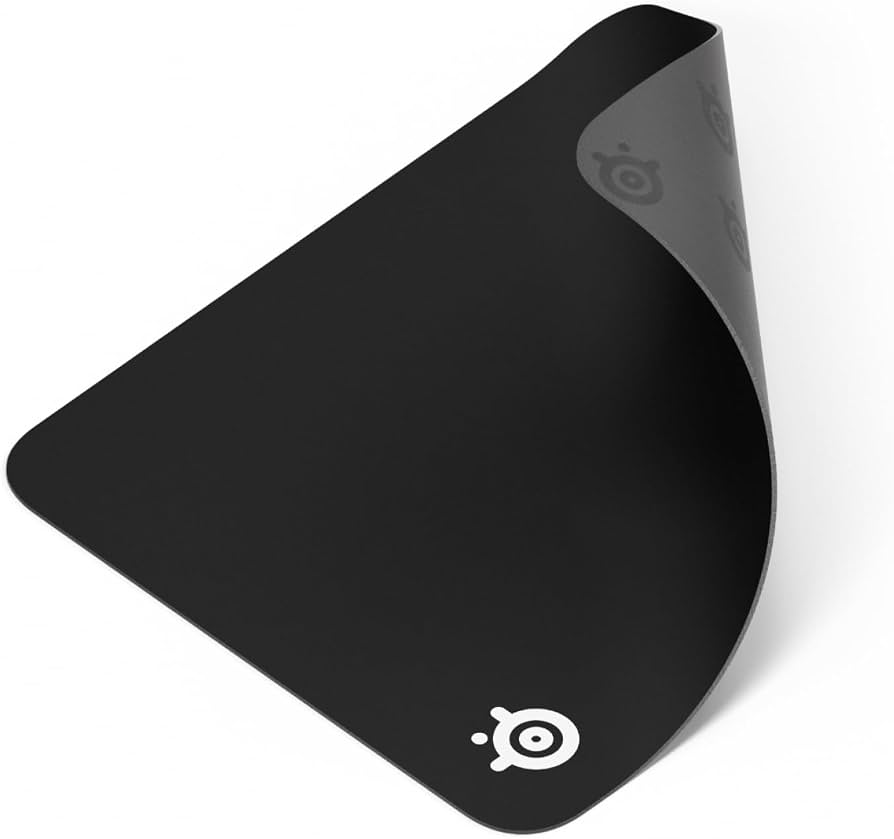
SteelSeries QcK Gaming Mouse Pad

SteelSeries QcK Gaming Mouse Pad

⚠️ Essential

$12.99

When to buy:
Day one

A good mouse pad ensures consistent tracking and protects your desk. The QcK is affordable and provides a smooth surface that works with any sensor. It improves accuracy and reduces wear on mouse feet.

Beginner Benefits:

  • Improves mouse tracking accuracy
  • Protects desk surface
  • Non-slip rubber base keeps it in place
  • Smooth glide helps build consistent aim
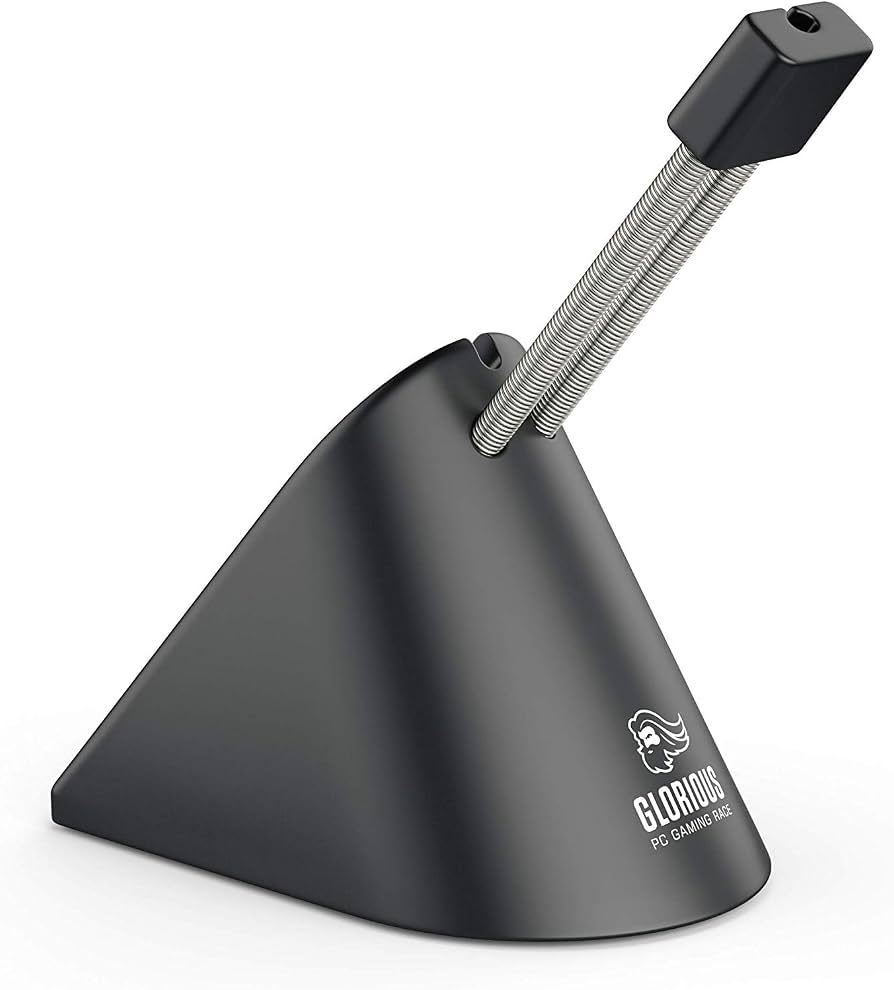
Glorious PC Gaming Race Mouse Bungee

Glorious PC Gaming Race Mouse Bungee

💡 Nice to Have

$19.99

When to buy:
After you're comfortable with your mouse

If you use a wired mouse, a bungee prevents the cable from snagging, giving a wireless-like feel. It’s a cheap upgrade that improves comfort and reduces cable drag.

Beginner Benefits:

  • Eliminates cable drag for smoother aim
  • Extends cable life by reducing stress
  • Easy setup – just clip the cable
  • Affordable way to improve wired mouse experience
Razer Goliathus Extended Chroma - Image 1 of 6

Razer Goliathus Extended Chroma

⬆️ Upgrade

$39.99

When to buy:
When upgrading from a smaller pad or wanting more space

An extended mouse pad covers the keyboard and mouse area, providing a consistent surface for both. The Chroma version adds RGB lighting for those who want customization.

Beginner Benefits:

  • Large surface area for low-sensitivity gaming
  • RGB lighting adds ambiance and desk appeal
  • Consistent texture for both mouse and keyboard
  • Non-slip base prevents movement during intense play
Logitech G440 Hard Gaming Mouse Pad

Logitech G440 Hard Gaming Mouse Pad

⬆️ Upgrade

$34.99

When to buy:
After you've used a cloth pad and want more speed

A hard pad provides a low-friction surface for faster glides, which some gamers prefer. It’s durable and easy to clean, ideal for beginners who want to try a different feel.

Beginner Benefits:

  • Very low friction – fast movements
  • Easy to clean with a damp cloth
  • Stays flat and doesn't absorb spills
  • Durable for long-term use

🤔 How to Choose Your First Mouse (Computer)

First, determine your budget. If under $30, look for a simple wired mouse from a reputable brand (Logitech, Razer, Corsair). For $30-60, you get more ergonomic shapes and better sensors. For $60-100, consider wireless or lightweight options. Ask yourself: What games do you play? For FPS games like Valorant or CS:GO, a light wired mouse with a good sensor is key. For MOBAs like League of Legends, more buttons can help. For casual gaming, any decent mouse works. Measure your hand (length from wrist to middle finger tip) – small (<17cm), medium (17-19cm), large (>19cm). Choose a mouse shape that matches. Also, consider whether you want RGB lighting (adds cost, no performance benefit). Finally, read beginner-friendly reviews – avoid buying the cheapest unknown brands, as they often break quickly.

💰 Budget Guide for Beginners

100+

High-end – for serious beginners with bigger budget, but not necessary.

30 - $60

Sweet spot – best value for most beginners, reliable sensor and build.

60 - $100

Premium beginner – excellent build, often wireless or lightweight, won't outgrow soon.

Under $ - $30

Entry level – good for trying out, may lack comfort or durability.

⚠️ Common Beginner Mistakes to Avoid

Many beginners buy a mouse based on reviews for advanced players, forgetting that ergonomics and simplicity matter more for newcomers. For example, a very lightweight mouse may be too 'twitchy' for a beginner to control. Another common mistake is buying a mouse with a very high DPI setting (e.g., 16,000) thinking it's better, when in reality most pros use 800-1600. Beginners should start with a medium DPI and adjust in-game sensitivity. Also, neglecting the mouse pad is a big oversight: a cheap cloth pad ($10) drastically improves tracking. Finally, some beginners skip reading the software manual, missing out on button customization that can simplify gaming.

  • ×Buying the cheapest mouse from an unknown brand – often has poor sensor and build.
  • ×Overspending on a premium mouse before knowing your preferences.
  • ×Ignoring ergonomics – buying a mouse that doesn't fit your hand size.
  • ×Relying on high DPI thinking it gives better aim – actually lower DPI with proper sensitivity is better.
  • ×Skipping a mouse pad – using on bare desk can cause tracking issues.
  • ×Getting a mouse with too many buttons and never using them.
  • ×Choosing wireless without considering battery life and latency.
  • ×Not adjusting in-game sensitivity after changing mouse DPI.

📈 Your Progression Path: Beginner to Intermediate

Start with a simple wired mouse like the Logitech G203. Practice basic aiming and button mapping in your favorite games. After a few months, you'll understand your grip and preferences. If you find the cable annoying, consider a wireless upgrade like the Razer Basilisk X. As you improve, experiment with weight and shape: try a lighter mouse (like the G Pro X Superlight) or an ergonomic shape (like the DeathAdder). You might also explore mice with more buttons for MOBAs. Typically, beginners stay at entry-level for 6-12 months before upgrading. Signs you've outgrown your beginner mouse include: feeling limited by cable drag, wanting faster response, or needing more buttons for complex games. Next steps: learn about polling rates, lift-off distance, and advanced customization in software.

📚 Learning Resources for Beginners

  • 📖Pro Gaming Mouse Settings Guide (book) on Amazon – explains DPI, polling rate, and in-game sensitivity.
  • 📖Ergonomic Mouse Buying Guide (e-book) – helps beginners understand hand size and grip styles.
  • 📖Mouse Grip Tape (practice aid) – teaches proper grip technique for accuracy.
  • 📖Aim Lab (software) – available via Steam, but training sessions can be found on Amazon as gift cards.
  • 📖Logitech G Hub Tutorial (free online) – beginners learn to customize their mouse.
  • 📖Razer Synapse User Guide (downloadable) – step-by-step software setup.

🎯 Bottom Line: Our Recommendations

For most beginners, the Razer DeathAdder V2 offers the best balance of comfort, performance, and price. If you're on a very tight budget, the Logitech G203 is excellent for learning. If you can spend more and want wireless, the Razer Basilisk X Hyperspeed is a great choice. Remember to buy a mouse pad (like the SteelSeries QcK) on day one. Avoid the temptation to buy a high-end mouse immediately – learn first, then upgrade. You're starting an exciting journey; enjoy the process and don't stress over minor differences. Happy gaming!

❓ Frequently Asked Questions

The best gaming mouse for beginners is the Razer DeathAdder V2. It's comfortable, reliable, and affordable (around $50). It has a great sensor, simple software, and enough buttons for most games without being overwhelming.
Beginners should spend between $25 and $60. $25-30 gets you a decent basic mouse (Logitech G203), while $40-60 offers better ergonomics and sensors (Razer DeathAdder V2, Razer Basilisk X). Spending over $100 is unnecessary until you know your preferences.
Beginners need a comfortable shape, reliable sensor, adjustable DPI (800-1600), a few extra buttons (2-4), durable build, and simple software. Avoid mice with too many buttons or extreme lightweight designs.
The Logitech G203 is very easy to use with its symmetrical shape, simple two-button side panel, and intuitive software. The Razer DeathAdder V2 is also very user-friendly for palm grip users.
Essential: a cloth mouse pad (like SteelSeries QcK). Recommended: a mouse bungee if using a wired mouse. Optional: extended mouse pad, grip tape, or a hard pad for faster glide.
First, determine your hand size and grip style. Then set a budget (most beginners choose $30-60). Read beginner-friendly reviews and choose from reputable brands. Focus on comfort and simplicity, not flashy features.
Choosing a gaming mouse is not hard; there are many beginner-friendly options. The hardest part is ignoring marketing hype. Stick to the basics, and you'll find a great mouse quickly.
Common mistakes: buying too cheap (poor quality), buying too expensive (unnecessary features), ignoring hand size, skipping a mouse pad, and relying on high DPI. Always test the mouse in your hand if possible.
Wired is recommended for beginners because it's cheaper and eliminates battery concerns. If you want wireless, choose a budget-friendly option like Razer Basilisk X. Modern wireless is great, but costs more.
Beginners should start with 800 or 1600 DPI and adjust in-game sensitivity accordingly. Higher DPI (above 3200) can make the cursor jittery and hard to control. Most pros use 800-1600.
A good beginner mouse (like Logitech G203) lasts 2-3 years. You may want to upgrade once you're comfortable and know what you like, but the mouse itself will keep working.
Yes, gaming mice work fine for office tasks. Their DPI adjustment and extra buttons can even boost productivity. They are often more comfortable and durable than standard mice.