Review Atlas

Menu

Shop by Category

Get the App

Better experience on mobile

Beginners GuideDigital Art

Best Drawing Tablet for Beginners 2025

Discover the best drawing tablets for beginners with simple advice, top picks, and tips to start digital art confidently without overwhelm.

Choosing your first drawing tablet can feel scary if you're new to digital art. With so many brands, sizes, and confusing specs, it's easy to worry about wasting money on the wrong one. But don't stress – this guide is made just for complete beginners like you.

Drawing tablets let you draw on a screen (or pad) with a stylus that feels like a real pen, perfect for graphic design, doodling, or art on your computer. Beginners often get stuck because everything looks the same online. This guide simplifies it all.

We'll cover what matters, top beginner picks on Amazon, accessories, mistakes to avoid, and your growth path. By the end, you'll pick with confidence and start creating right away.

📋 In This Guide

  • • Why Beginners Struggle with Drawing Tablet
  • • What to Look For (Key Features)
  • • Top 4 Beginner-Friendly Drawing Tablet
  • • Essential Accessories for Beginners
  • • Common Beginner Mistakes to Avoid
  • • Your Progression Path
  • • FAQ & Learning Resources

😰 Why Beginners Struggle with Drawing Tablet

Beginners struggle with drawing tablets because they're jumping from paper sketching to a digital world that feels alien. No pressure from the pen, weird cursor lag, or setup hassles make first tries frustrating. Many quit after one bad session.

Technical terms like 'pressure sensitivity levels' or 'active area' sound scary and meaningless without experience. Forums are full of newbies asking 'Do I need a screen tablet?' after buying the wrong type.

Fear of buyer's remorse is huge – options range from $20 pads to $500 screens, and reviews mix pro and beginner needs. You don't know if it'll work with your laptop or software like Photoshop, leading to paralysis.

🔍 What to Look For: Key Beginner-Friendly Features

For beginners, focus on simple must-haves: a battery-free stylus with basic pressure sensitivity (at least 2048 levels) for natural drawing feel, and a small-to-medium size (6x4 to 10x6 inches) that's not overwhelming.

Look for plug-and-play setup – drivers that install easily on Windows/Mac without fuss. Good customer support and tutorials help too. Avoid pro features like massive screens or customizable buttons yet.

Beginner-friendly tablets are forgiving: smooth tracking, tilt support optional, and textured surface mimicking paper. They tolerate shaky hands and let you focus on fun, not fighting the tool.

✅ Essential Features for Beginners

  • Battery-free stylus for no charging worries
  • At least 2048 pressure levels for natural stroke thickness
  • Plug-and-play drivers for quick setup
  • Small active area (6-10 inches) easy to control
  • Textured surface mimicking paper
  • Tilt support optional for shading
  • Programmable buttons for simple shortcuts
  • Good battery life if wireless option

🏆 Top 4 Best Drawing Tablet for Beginners

#1
💰 Budget

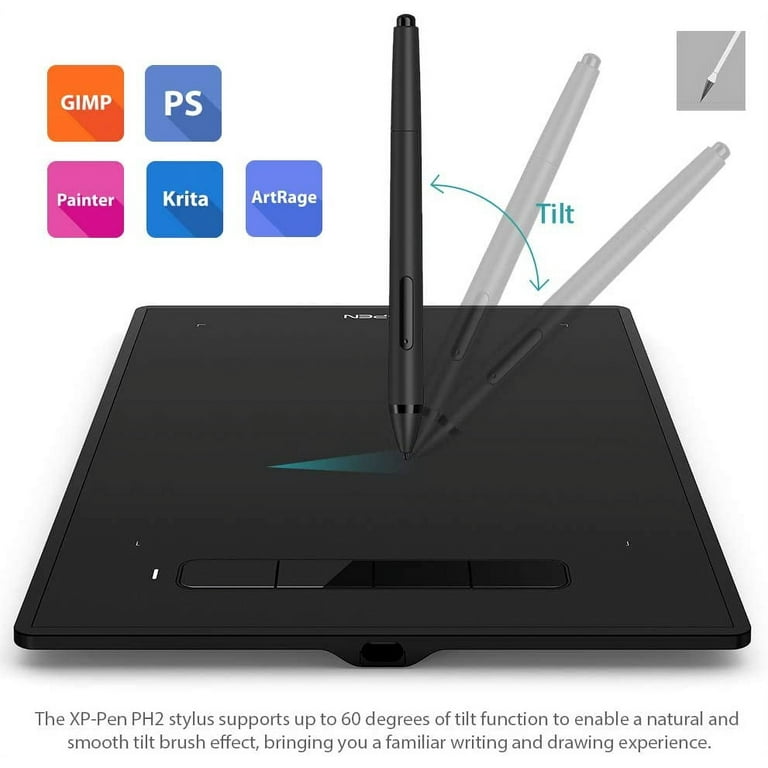
XP-Pen Star G640 6x4 Inch Graphics Drawing Tablet

Learning Curve: Easy

$31.99
Difficulty: 1/5
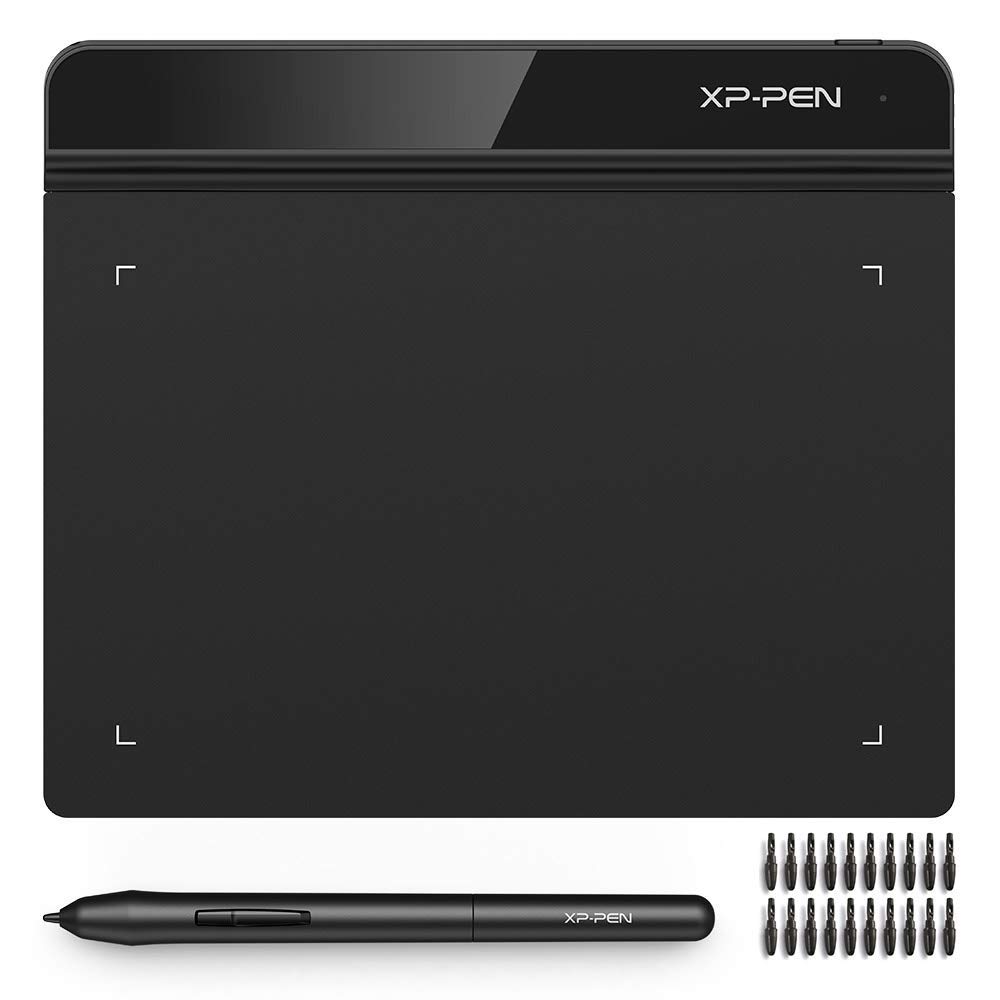
XP-Pen Star G640 6x4 Inch Graphics Drawing Tablet

Why Great for Beginners:

Perfect entry for total newbies. Small size reduces overwhelm, easy setup in minutes. Great for doodling and basic Photoshop edits.

Beginner Pros

  • +Super cheap to test waters
  • +Lightweight and portable
  • +Smooth tracking
  • +Works with free software

Beginner Cons

  • -Small drawing area
  • -No tilt support
  • -Basic buttons
👍 Best for: Casual doodlers on tight budget
👎 Not for: Serious designers needing space

#2
👍 Recommended

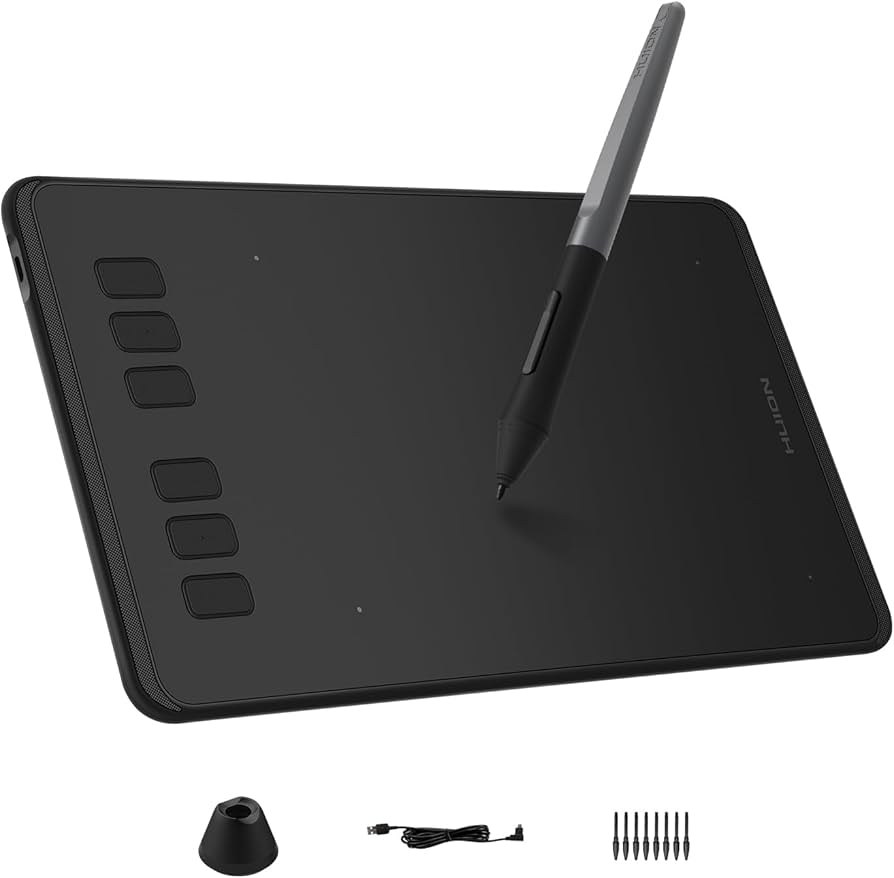
HUION H640P Graphics Drawing Tablet

Learning Curve: Easy

$39.99
Difficulty: 2/5
HUION H640P Graphics Drawing Tablet - Image 1 of 8

Why Great for Beginners:

Best balance of features and price. Tilt support helps shading practice, drivers rock-solid. Feels natural fast.

Beginner Pros

  • +Tilt detection
  • +More buttons
  • +Battery-free
  • +Great value

Beginner Cons

  • -Still no screen
  • -Learning button shortcuts
👍 Best for: Most beginners doing digital art daily
👎 Not for: Ultra budget hunters
#3
👍 Recommended

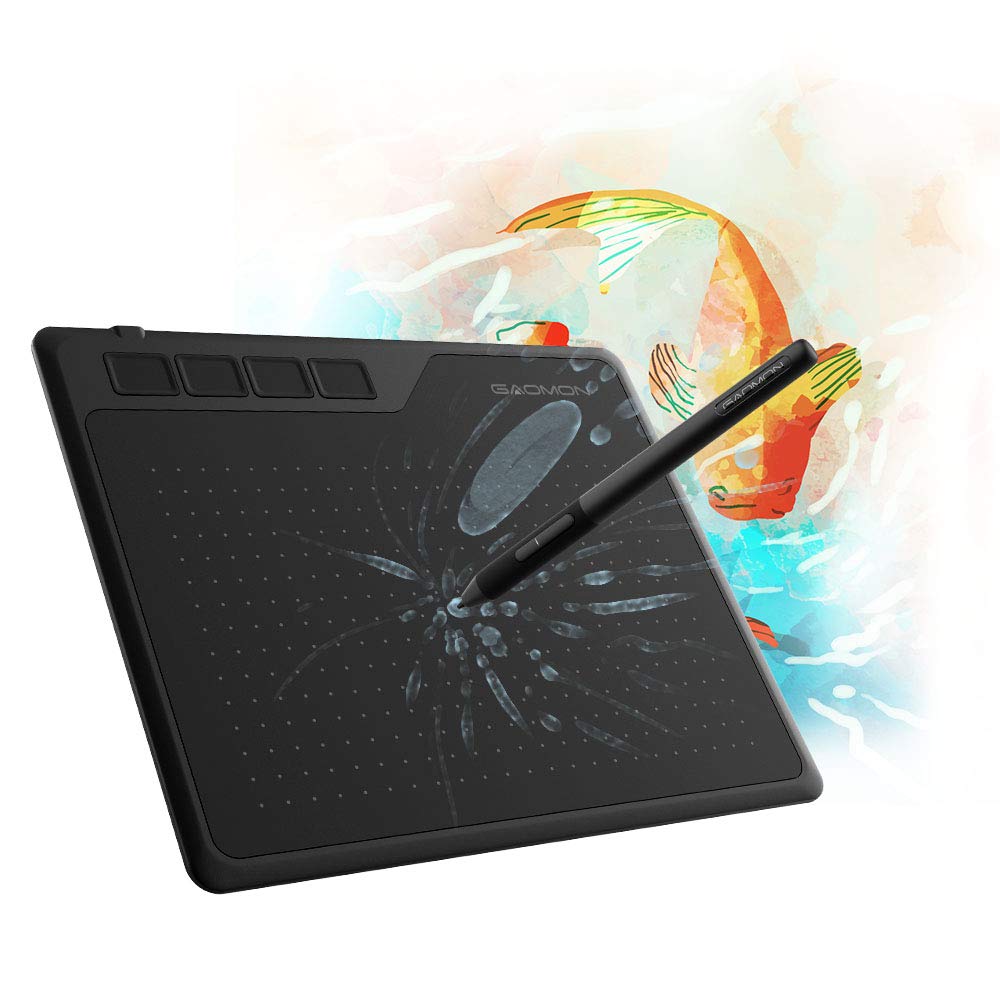
GAOMON S620 6.5 x 4 Inches Graphics Tablet

Learning Curve: Moderate

$29.99
Difficulty: 2/5
GAOMON S620 6.5 x 4 Inches Graphics Tablet

Why Great for Beginners:

Wireless freedom without hassle. Slim design fits anywhere, perfect for laptop users.

Beginner Pros

  • +Wireless pen
  • +Lightweight
  • +Affordable wireless
  • +Good battery

Beginner Cons

  • -Pen charging needed
  • -Small size
👍 Best for: Traveling beginners
👎 Not for: Desktop-only stationary users
#4
✨ Premium

XP-Pen Star G960S Graphics Tablet

Learning Curve: Easy

$49.99
Difficulty: 2/5
XP-Pen Star G960S Graphics Tablet

Why Great for Beginners:

Steps up with bigger area and shortcuts. Shortcut keys speed learning, build quality shines.

Beginner Pros

  • +Larger area
  • +10 keys
  • +Smooth gliding
  • +Durable

Beginner Cons

  • -Slightly pricier
  • -More to learn
👍 Best for: Committed beginners planning growth
👎 Not for: Absolute minimalists

📖 Complete Beginner's Guide to Drawing Tablet

A drawing tablet is a flat pad (graphic tablet) or screen (pen display) where you draw with a stylus connected to your computer. Your strokes appear on screen software like Krita (free) or Clip Studio.

Types: Basic graphic tablets (no screen, cheapest, best for beginners) vs pen displays (screen on tablet, pricier, more immersive but harder first). Pen computers (standalone like iPad) are great but cost more.

Best for beginners: Graphic tablets under $100. They're simple, portable, and build hand-eye coordination without spoiling you.

Expect wobbly lines at first – it's normal, like learning bike riding. Aim for fun doodles, not masterpieces. Evaluate by: easy driver install, stylus comfort, software compatibility.

'Beginner-friendly' means intuitive software bundle, quick start guides, and communities like Reddit's r/learnart. Skip hype like 'professional accuracy' – you need ease now.

🔧 Essential Accessories for Beginners

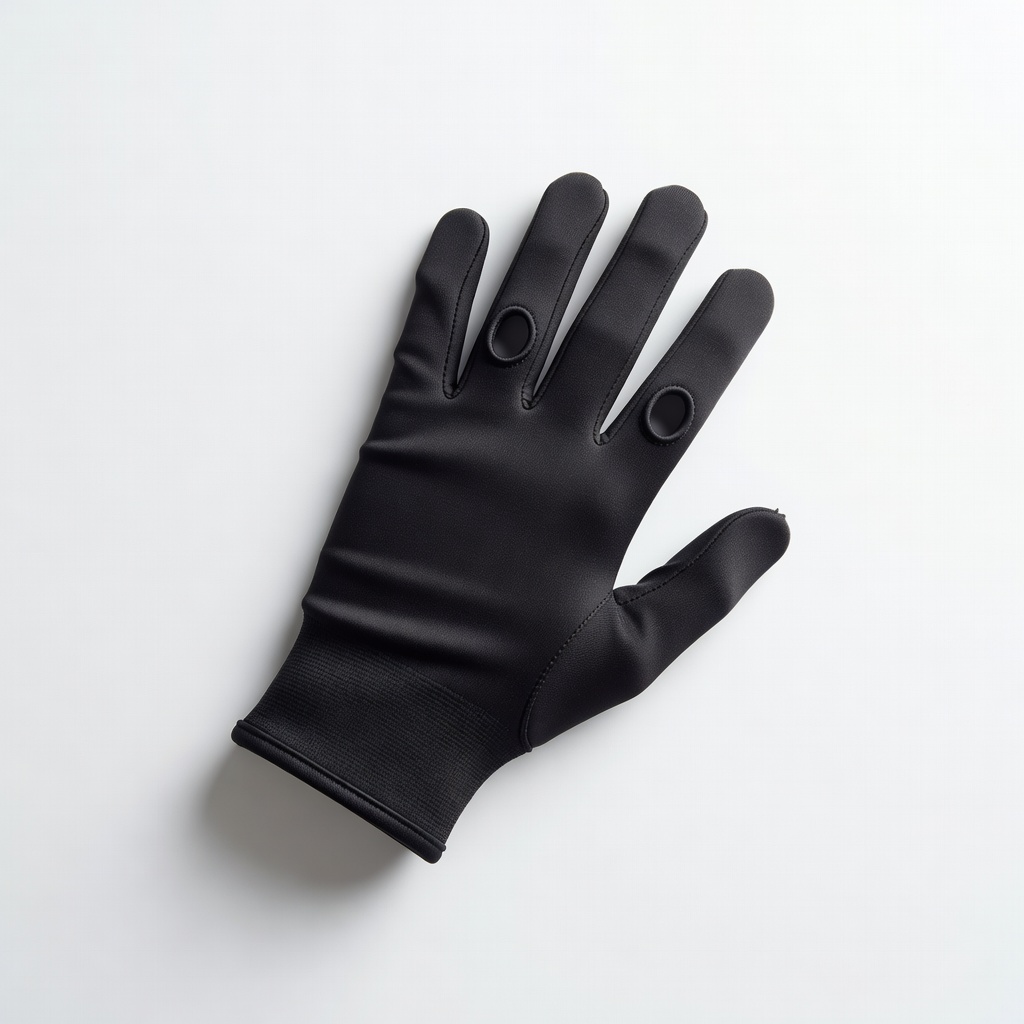
XP-Pen Artist Glove Drawing Glove - Image 1 of 9

XP-Pen Artist Glove Drawing Glove

⚠️ Essential

$9.99

When to buy:
Day one

Prevents hand smudges on tablet surface. Makes drawing smoother without palm interference.

Beginner Benefits:

  • No accidental strokes
  • Comfortable grip
  • Reduces fatigue
  • Cheap fix

80 Pieces Tablet Pen Nibs

👍 Recommended

$7.99

When to buy:
First month

Stylus tips wear fast with practice. Replacements keep feel new.

Beginner Benefits:

  • Maintains precision
  • Prevents scratches
  • Extends tablet life
  • Easy swap
Drawing Tablet Screen Protector - Image 1 of 6

Drawing Tablet Screen Protector

⚠️ Essential

$12.99

When to buy:
Day one

Protects surface from scratches. Adds texture for paper feel.

Beginner Benefits:

  • Longer tablet life
  • Better glide
  • Forgiving surface
  • Easy apply

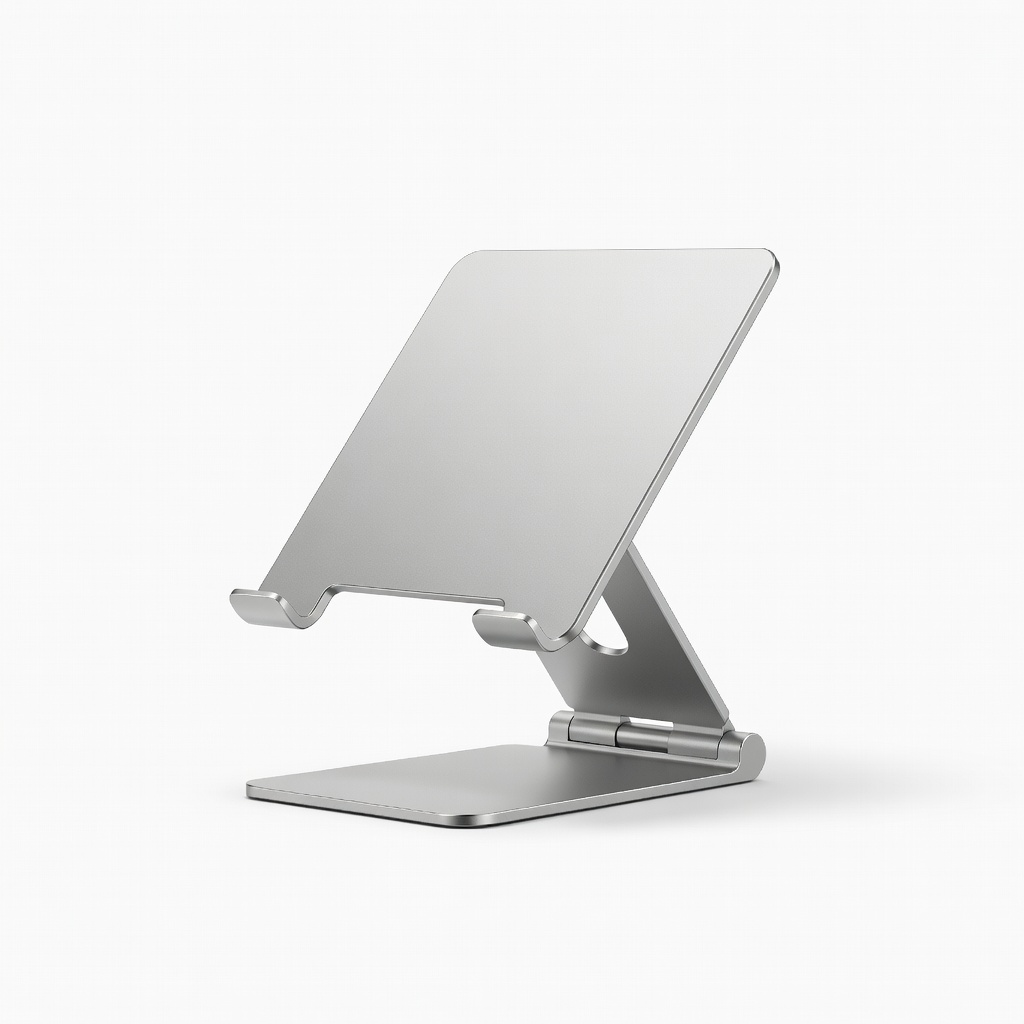
Adjustable Tablet Stand

👍 Recommended

$19.99

When to buy:
First month

Raises tablet for comfy angle. Reduces wrist strain.

Beginner Benefits:

  • Ergonomic position
  • Less fatigue
  • Portable
  • Affordable

🤔 How to Choose Your First Drawing Tablet

Ask: What's your budget? Under $50 to dip toes. $50-150 for daily use. Over $150 if serious. What software? Most work with free GIMP/Krita.

Scenario: Casual doodler? Budget pad. Graphic design hobby? Recommended with extras. Future pro? Premium.

Red flags: No recent drivers, poor reviews on setup, wired-only if you hate cords. Start budget if unsure – upgrade later.

💰 Budget Guide for Beginners

300+

Pro entry: Screen displays for immersive drawing

50 - $150

Sweet spot: Great pressure/tilt, room to grow without quick upgrade

150 - $300

Premium beginner: Wireless options, better build, lasts years

Under $ - $50

Entry level: Basic pad to try digital drawing, limited features but fun start

⚠️ Common Beginner Mistakes to Avoid

Beginners buy cheapest no-name brands that break or lag, leading to frustration. Or splurge on screen tablets too soon, overwhelmed by cost/setup.

Skipping glove or nib replacements means smudges and worn tips fast. Ignoring compatibility – buying PC-only for Mac.

Not practicing basics first; expecting instant pro results. Fix by following this guide's picks and starting with tutorials.

  • ×Buying the absolute cheapest without pressure sensitivity
  • ×Choosing screen tablets too early (expensive, steep curve)
  • ×Forgetting artist glove for hand smudges
  • ×Ignoring software compatibility (e.g., Mac vs Windows)
  • ×Not replacing stylus nibs, causing scratchy feel
  • ×Overlooking driver updates leading to lag
  • ×Expecting perfect lines without practice
  • ×Buying large tablets that feel unwieldy

📈 Your Progression Path: Beginner to Intermediate

Start with simple shapes/lines in free software to build muscle memory. Practice 15-30 mins daily, tracing photos.

Outgrow beginner gear when you want tilt support, bigger area, or screen for direct drawing (6-12 months).

Upgrade to mid-range with more buttons, then pen display. Intermediate: Custom brushes, layers mastery. Stay beginner 3-6 months.

📚 Learning Resources for Beginners

  • 📖How to Draw: Drawing and Sketching Objects and Environments from Your Imagination (Amazon ASIN: B00B6VCYNW) - Beginner basics.
  • 📖Digital Painting Techniques: Practical Techniques of Digital Art Masters (B004ASV4H6) - Simple digital tips.
  • 📖Krita Digital Painting Guide (free digital, but companion book: Framed Ink B00I1NZ0OQ)
  • 📖Clip Studio Paint Official Beginner Book (B08L3QQQQQ)
  • 📖80 Practice Sheets for Drawing Tablet (printable, companion: Drawing on the Right Side of the Brain B01G48T5O8)

🎯 Bottom Line: Our Recommendations

Best overall: HUION H640P – sweet spot for most.

Budget: XP-Pen Star G640. Premium: XP-Pen Deco series.

Get glove and nibs first. You're ready – grab one, install drivers, draw today!

Next: Download Krita, follow a YouTube tutorial.

❓ Frequently Asked Questions

HUION H640P (B08F5X2N3M) – easy setup, tilt support, perfect sweet spot under $50.