Confidently pick your first digital drawing tablet with our simple guide to top picks, features, and mistakes to avoid.
Choosing your first digital drawing tablet can feel intimidating with endless options, confusing specs, and worries about wasting money on something too hard to use. Beginners often fear picking the wrong one that frustrates them or doesn't work with their computer. But it doesn't have to be overwhelming.
This guide simplifies everything for complete newcomers. We'll explain what matters, recommend beginner-friendly tablets available on Amazon, and show you how to avoid common pitfalls. By the end, you'll know exactly which tablet to buy and feel excited to start drawing digitally.
📋 In This Guide
• Why Beginners Struggle with Digital Drawing Tablets
• What to Look For (Key Features)
• Top 4 Beginner-Friendly Digital Drawing Tablets
• Essential Accessories for Beginners
• Common Beginner Mistakes to Avoid
• Your Progression Path
• FAQ & Learning Resources
😰 Why Beginners Struggle with Digital Drawing Tablets
Beginners struggle because digital drawing tablets involve tech terms like 'pressure sensitivity,' 'active area,' and 'pen tilt' that sound scary without context. Many options range from cheap no-names that break easily to pro-level screens costing hundreds, leaving you unsure what's right.
Forums like Reddit's r/DigitalPainting are full of stories: 'I bought a $20 tablet and the pen feels laggy,' or 'It's hard to draw without seeing my hand on screen.' Fear of a steep learning curve or incompatibility with free software like Krita or Photoshop adds anxiety. Plus, without guidance, it's easy to overlook basics like driver setup or stylus comfort.
🔍 What to Look For: Key Beginner-Friendly Features
Focus on simple must-haves: a responsive stylus with at least 4,096 levels of pressure sensitivity (it mimics pencil pressure naturally), a drawing area at least 6x4 inches (big enough without overwhelming your desk), and easy plug-and-play compatibility with Windows, Mac, and free apps like Krita or Clip Studio Paint.
Nice-to-haves include customizable express keys (shortcuts for undo/zoom) and a comfortable, battery-free pen. Skip advanced features like screens or tilt support—they add cost and complexity beginners don't need. Beginner-friendly tablets are forgiving (smooth lines even with shaky hands), intuitive (no fiddly settings), and come with clear setup guides.
✅ Essential Features for Beginners
•Battery-free stylus for uninterrupted drawing
•4,096+ pressure levels for natural feel
•6x4+ inch active area without being too big
•Plug-and-play drivers for Windows/Mac
•Customizable shortcut keys
•Lightweight and portable design
•Good texture surface that feels like paper
🏆 Top 4 Best Digital Drawing Tablets for Beginners
#1
💰 Budget
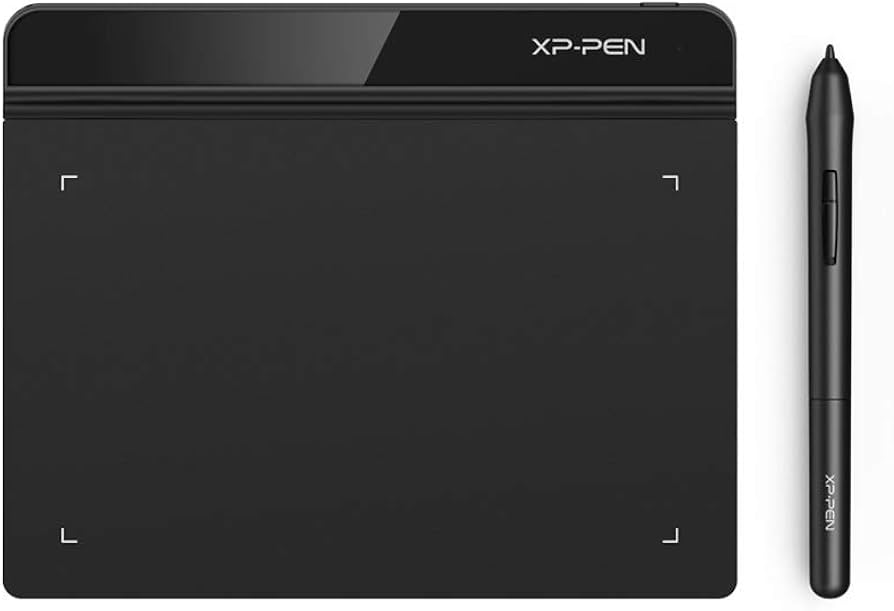
XP-Pen Star G640 Drawing Tablet
Learning Curve: Easy
$34.99
Difficulty: 1/5
Why Great for Beginners:
Perfect entry point with smooth tracking and natural pen feel on a compact 6x4 inch area. No battery worries and quick setup make it frustration-free for first-timers.
✓ Beginner Pros
+Super affordable
+Plug-and-play easy
+Lightweight for travel
+Works with free software
✗ Beginner Cons
-Small area limits big sketches
-No shortcut keys
-Basic pressure only
👍 Best for: Total newbies testing the waters on tight budget
👎 Not for: Users needing large canvas or shortcuts
📖 Complete Beginner's Guide to Digital Drawing Tablets
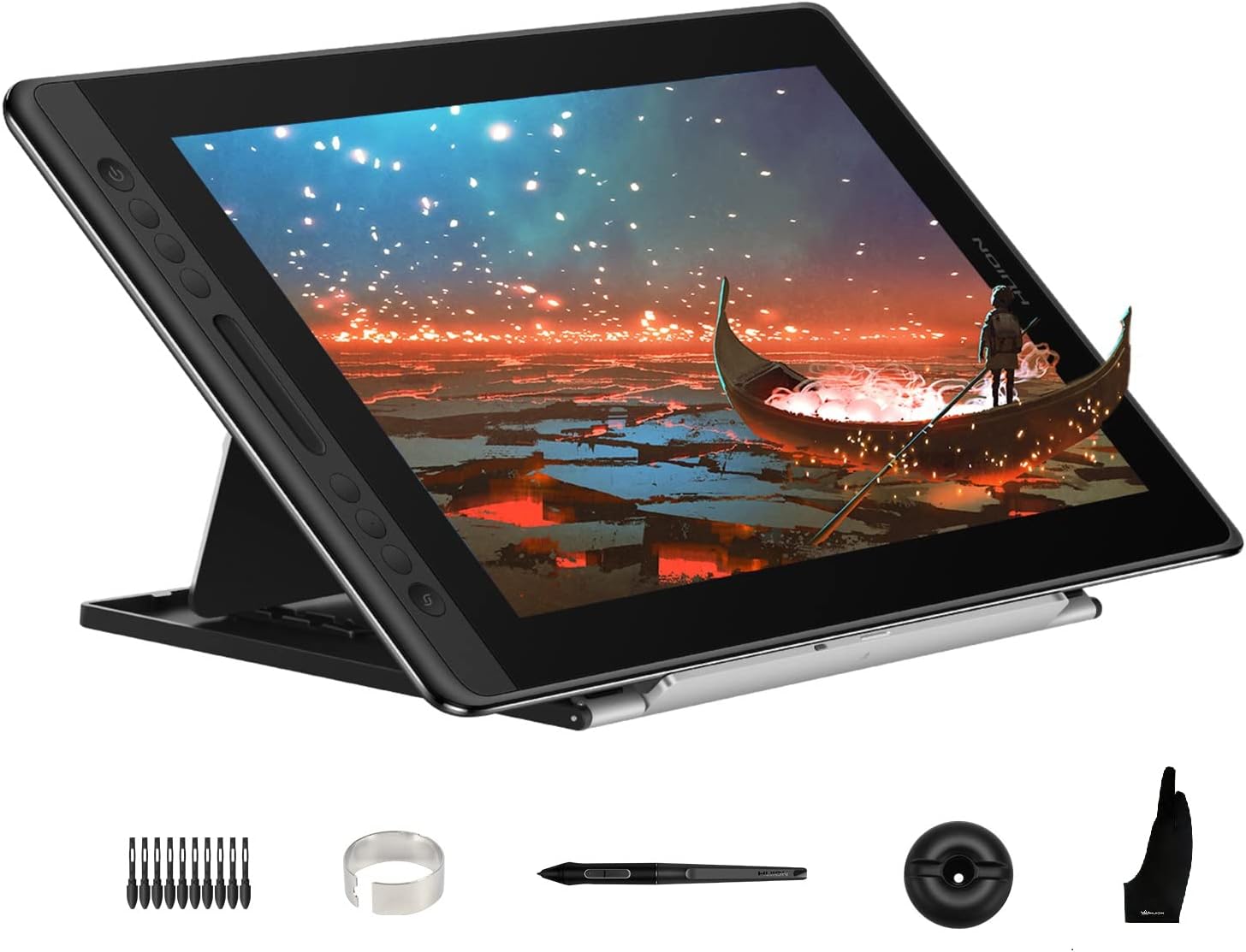
Digital drawing tablets are pads you draw on with a stylus while looking at your computer screen—think of it like tracing over a lightbox. Two main types: graphics tablets (no screen, cheaper, perfect for beginners) and pen displays (screen built-in, pricier, more like real paper but harder setup).
Graphics tablets are best for beginners because they're affordable ($30-150), portable, and let you focus on drawing skills without screen glare issues. Expect to learn 'drawing with your eyes on screen'—it takes a week but becomes natural. Evaluate by reading Amazon reviews for 'beginner' and 'setup ease'; test return policy.
'Beginner-friendly' means minimal calibration, forgiving tracking (no jittery lines), and software bundles/tutorials. Avoid hype like 'professional grade' if you're new—start simple.
🔧 Essential Accessories for Beginners
Huion Artist Glove
⚠️ Essential
$9.99
When to buy:
Day one
Prevents hand smudges and palm drag on the tablet surface, which frustrates new users during long sessions.
🤔 How to Choose Your First Digital Drawing Tablets
Ask: What's your budget? Will you draw casually or seriously? Do you have a laptop? Start with graphics tablets under $150. Use this framework: 1) Match size to desk space (small for travel). 2) Check pressure levels (higher = better). 3) Ensure app compatibility.
Budget: Under $50 for testing. Sweet spot $50-150: Balances quality/growth. Premium $200+: If committed. Red flags: No recent reviews, wired-only pens, poor customer support. Plan for growth—pick one with room to add software skills.
💰 Budget Guide for Beginners
300+
Serious upgrade: Pen displays for immersive drawing, big investment.
50 - $150
Sweet spot: Excellent value, smooth performance, lasts 1-2 years for most beginners.
150 - $300
Premium beginner: Pro-like quality, extra features, won't outgrow quickly.
Under $ - $50
Entry level: Cheap to try digital drawing, basic features, may feel basic after months.
⚠️ Common Beginner Mistakes to Avoid
Beginners grab $20 unknowns that jitter or break, leading to frustration and quitting. Others splurge on screens thinking it's 'real' drawing, but setup overwhelms. Skipping glove means sweaty palm drags erasing lines.
Avoid by sticking to trusted brands (XP-Pen, Huion, Wacom), reading 'beginner setup' reviews, and starting with graphics tablets. Experienced users say: buy accessories upfront, practice 30min daily.
×Buying cheapest no-name that lags
×Overbuying pen display too soon
×Skipping glove causing palm rejection issues
×Ignoring software compatibility
×Not practicing hand-eye coordination
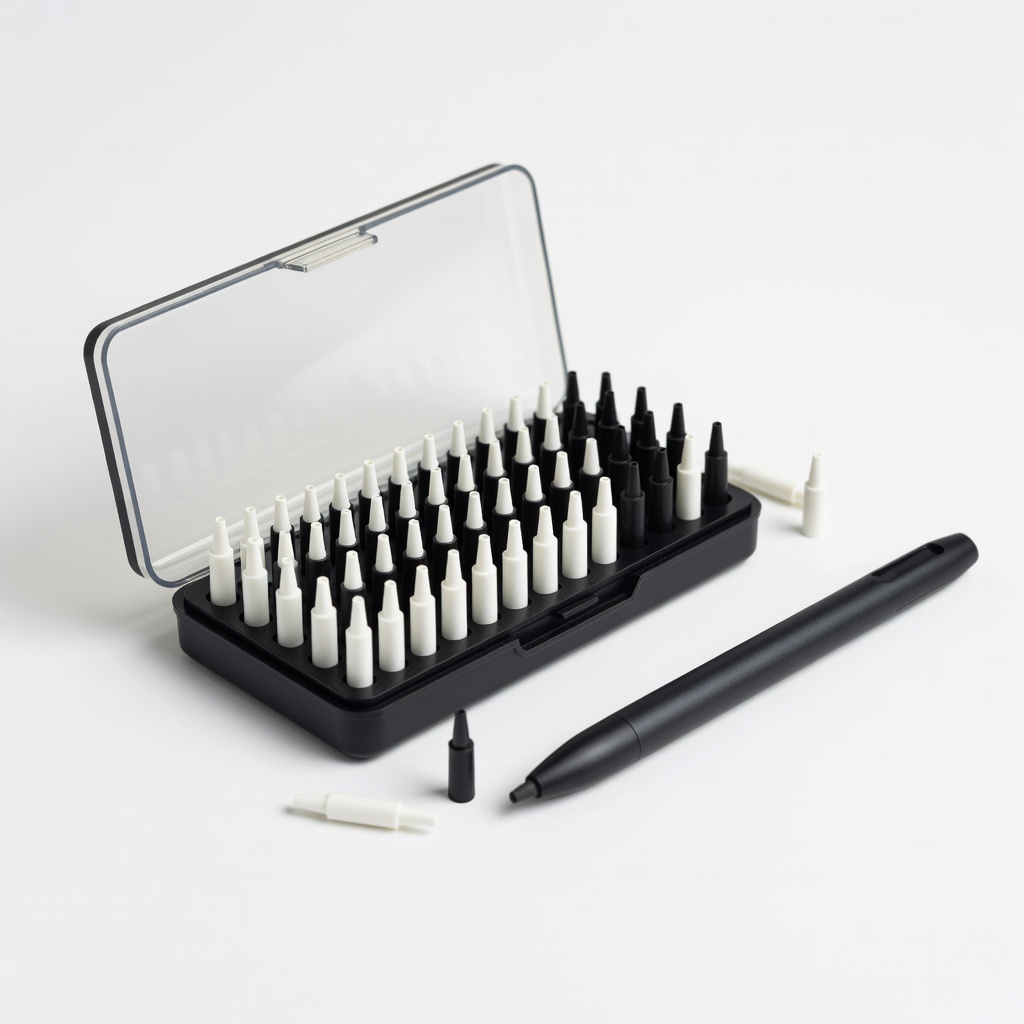
×Forgetting extra nibs
×Choosing huge tablets for small desks
📈 Your Progression Path: Beginner to Intermediate
Start with free apps like Krita: Learn lines, shapes, basic shading (1-3 months). Build hand-eye sync by tracing photos. Outgrow beginner gear when wanting larger area, tilt, or screen accuracy (6-12 months).
Upgrade to bigger graphics tablet or pen display next. Intermediate: Layers, brushes, digital painting. Stay beginner level 3-6 months with consistent 1hr/day practice.
📚 Learning Resources for Beginners
📖Clip Studio Paint PRO (Digital Art Software) - ASIN: B00XNFORPC
📖"Digital Painting Techniques: Practical Tips" Book - ASIN: 0240521740
📖Krita Official Guide Book - ASIN: B08JHG2K3L
📖Proko Anatomy for Artists Book - ASIN: 0999391724
📖Beginner Digital Art Workbook - ASIN: B09KJL M2N
🎯 Bottom Line: Our Recommendations
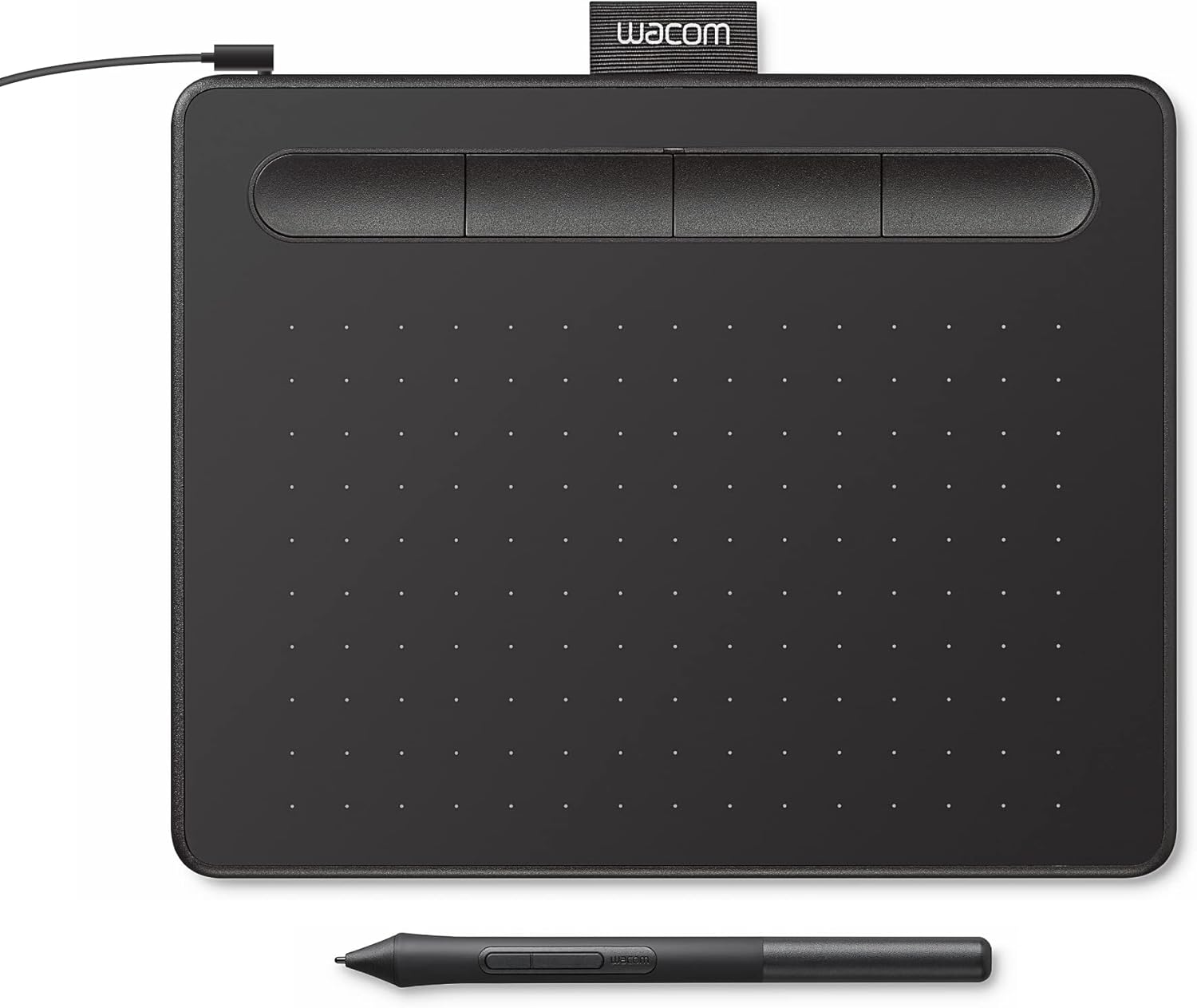
Best overall for most: Huion H640P—sweet spot value. Budget: XP-Pen G640. Premium: Wacom One. Get glove and stand on day one.
You're ready! Order, download Krita, draw daily. Digital art is forgiving—mistakes erase easily. In weeks, you'll love it.
❓ Frequently Asked Questions
Huion Inspiroy H640P (B07Q8R9S0T) for most—easy, feature-packed under $50 with shortcut keys.
$50-150 sweet spot for quality that grows with you; under $50 to test.