7 Best Best Digital Drawing Tablet for beginners in 2026: Tested…
Everything beginners need to know to choose their first digital drawing tablet with confidence
Stepping into digital art is thrilling, but picking your first drawing tablet can feel overwhelming. With dozens of models, confusing specs, and price tags ranging from $40 to $400, it’s easy to worry about making a mistake. This guide cuts through the noise. We’ll explain exactly what beginners need, which features truly matter, and recommend real tablets that won’t frustrate you. By the end, you’ll know exactly which tablet is right for your budget and skill level – and you’ll be ready to start creating with confidence.
📋 In This Guide
• Why Beginners Struggle with Digital Drawing Tablet
• What to Look For (Key Features)
• Top 5 Beginner-Friendly Digital Drawing Tablet
• Essential Accessories for Beginners
• Common Beginner Mistakes to Avoid
• Your Progression Path
• FAQ & Learning Resources
😰 Why Beginners Struggle with Digital Drawing Tablet
Many beginners get lost in technical jargon like 'pressure sensitivity levels,' 'report rate,' and 'laminated screens.' They worry that a cheap tablet will be unusable, while an expensive one might be overkill. Online reviews often focus on advanced features that don’t matter to newcomers. The result? Analysis paralysis. Actually, most modern tablets are very capable. Beginners primarily need a smooth drawing experience, reliable driver support, and a comfortable size. The biggest struggle is filtering out noise and picking a tablet that just works out of the box.
🔍 What to Look For: Key Beginner-Friendly Features
For beginners, focus on three things: 1) Plug-and-play simplicity – look for tablets with automatic driver installation and no complicated setup. 2) Active area size – bigger gives you more room to draw naturally, but too big can overwhelm your desk; a medium active area (around 6x4 inches) is a great start. 3) Pen feel – a battery-free pen with 2048+ levels of pressure sensitivity ensures that your strokes vary naturally, just like pencil on paper. Avoid tablets that require batteries in the pen – they’re heavier and prone to issues. Also, skip screens for your first tablet – non-screen (pen tablet) models are cheaper, more durable, and help you learn hand-eye coordination, which is a valuable skill.
✅ Essential Features for Beginners
•Battery-free pen: No charging needed, lighter, and more reliable.
•Plug-and-play drivers: Automatic installation on Windows/Mac without hassle.
•Ample active area: At least 6x4 inches to allow natural arm movement.
•Sufficient pressure sensitivity: 2048 levels or more for varied strokes.
•Durable build: A sturdy tablet that survives drops and travel.
•Compatibility: Works with Windows, Mac, and major art software (Photoshop, Krita, Clip Studio Paint).
•Ergonomic design: Tiltable or comfortable for long sessions.
🏆 Top 5 Best Digital Drawing Tablet for Beginners
#1
💰 Budget
Huion Inspiroy H640P
Learning Curve: Easy
$39.99
Difficulty: 1/5
Why Great for Beginners:
An incredible value tablet. It comes with a battery-free pen, 6.3x3.9-inch active area, and 8192 levels of pressure – more than enough for beginners. The driver is easy to install and works with all major software. Perfect for testing the waters without financial risk.
✓ Beginner Pros
+Very affordable
+Battery-free pen with 8192 pressure levels
+Compact and portable
+Works with Windows and Mac
✗ Beginner Cons
-Small active area may feel cramped
-No Bluetooth (wired only)
-Build quality feels a bit plastic-y
👍 Best for: Beginners on a tight budget who want a functional, no-frills entry into digital drawing.
👎 Not for: Artists who need a large drawing surface or want wireless convenience.
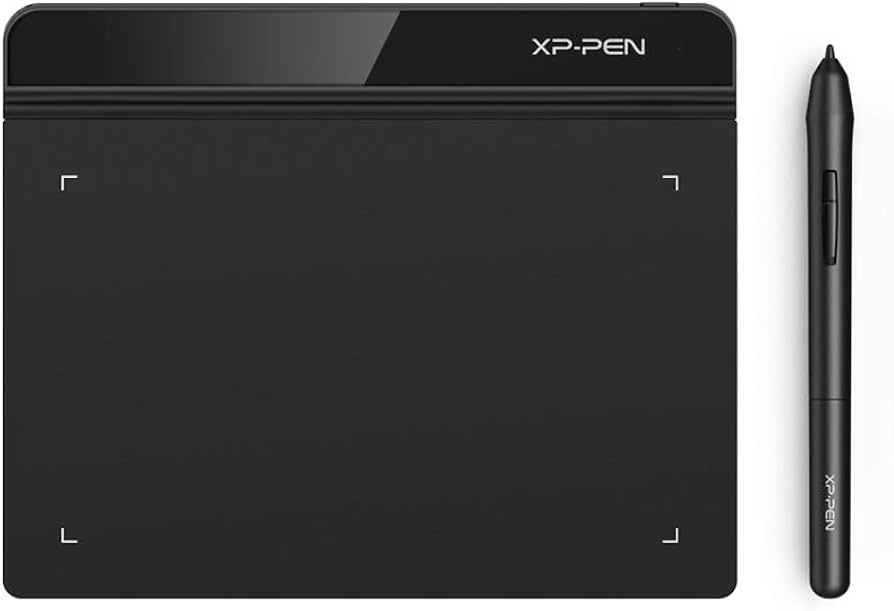
A step up in size and comfort. It offers a 6.5x4-inch active area – a bit larger than the Huion – and a battery-free pen with 8192 pressure levels. The pen has a textured grip and two side buttons for shortcuts. XP-Pen drivers are reliable and frequently updated.
✓ Beginner Pros
+Larger active area than budget picks
+Ergonomic pen with side buttons
+Slim, lightweight design
+Good driver support
✗ Beginner Cons
-No express keys on tablet (only pen buttons)
-Surface can be a bit slippery
-Wired connection (USB only)
👍 Best for: Beginners who want a slightly bigger drawing space and a comfortable pen without spending much.
👎 Not for: Artists who prefer physical shortcut buttons on the tablet.
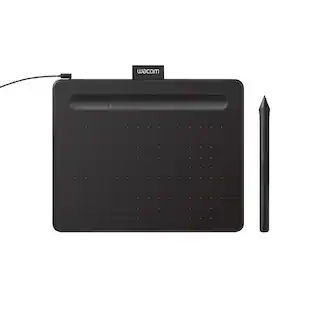
Wacom is the gold standard for a reason. This Intuos Small has a 6x3.7-inch active area, 4096 pressure levels, and a battery-free pen that feels natural. It includes free trials of Corel Painter Essentials & Clip Studio Paint Pro. The driver is bulletproof and integrates seamlessly with OS.
✓ Beginner Pros
+Excellent pen feel and build quality
+Reliable, industry-standard drivers
+Comes with creative software trials
+Slim and lightweight
✗ Beginner Cons
-Slightly smaller active area than XP-Pen G640
-Only 4096 pressure levels (still plenty)
-No Bluetooth (unless you buy the more expensive model)
👍 Best for: Beginners who want the most trusted brand and plan to continue with digital art long-term.
👎 Not for: Those who want the largest active area at this price point.
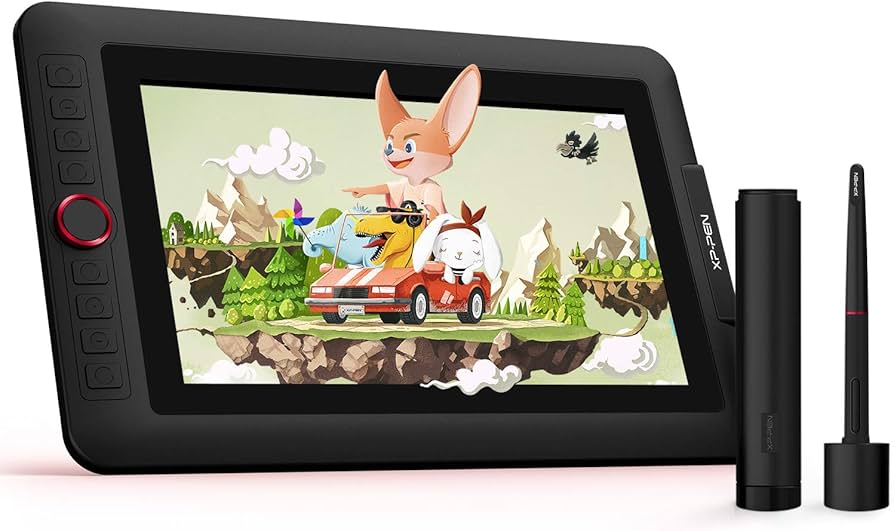
If you want a screen from the start, this is the best beginner-friendly pen display. It has an 11.6-inch IPS screen with full lamination (reduces parallax), 8192 pressure, and battery-free pen. Setup is simple: just connect HDMI and USB. The screen is bright and colors are accurate. You'll feel like you're drawing on paper.
✓ Beginner Pros
+Full laminated screen reduces the gap between pen and cursor
+Large 11.6-inch drawing area
+8192 pressure sensitivity
+Includes stand and glove
✗ Beginner Cons
-Requires HDMI and USB connection (more cables)
-Heavier than pen tablets
-Higher price point
👍 Best for: Beginners who prefer drawing directly on a screen and have a higher budget.
👎 Not for: Those on a tight budget or who want portability.
Another excellent entry-level pen display. The 13.3-inch screen is slightly larger than the XP-Pen Artist 12 Pro, with a fully laminated display and 8192 pressure. It comes with a battery-free pen and a foldable stand. The driver is easy to install, and it works with Windows/Mac.
✓ Beginner Pros
+Large 13.3-inch display
+Full lamination for low parallax
+8192 pressure sensitivity
+Includes stand and glove
✗ Beginner Cons
-Slightly heavier and bulkier
-Glossy screen can cause reflections
-Pen may require occasional calibration
👍 Best for: Beginners who want a larger screen for a similar price to the XP-Pen Artist 12 Pro.
👎 Not for: Those who need the most portable option or prefer matte screens.
📖 Complete Beginner's Guide to Digital Drawing Tablet
Digital drawing tablets come in two main types: pen tablets (no screen) and pen displays (with screen). For beginners, a pen tablet is the best entry point. It’s affordable (under $100), durable, and forces you to develop hand-eye coordination – just like using a mouse while looking at your monitor. Top brands include Wacom, XP-Pen, and Huion. Wacom is the industry standard with excellent drivers, while XP-Pen and Huion offer great value. The most important spec is pressure sensitivity – 2048 or 4096 levels are standard and fine for beginners. Active area (drawing surface) should be at least 6x4 inches – smaller can feel cramped. Connect via USB (most are plug-and-play). Don’t get seduced by high ‘report rate’ or ‘laminated screens’ – these matter less for learning. Realistic expectation: Your first few drawings may be wobbly, but within a week you’ll notice smoother lines. Start with free software like Krita or Medibang to build skills before investing in pro software.
🤔 How to Choose Your First Digital Drawing Tablet
Ask yourself: What is my budget? (Entry ~$40, Sweet Spot ~$70, Premium ~$200). What system do I use? (Windows/Mac – all work; Chromebook – check compatibility). How much desk space do I have? (Measure: need 6x4 inches minimum). Will I travel? (Yes – get a slim, portable model). Do I want a screen? (Not yet – start with pen tablet). Also check that the tablet includes a pen and cable – most do. Red flags: Tablets requiring battery in pen, no pressure sensitivity claimed, or no driver support for your OS. When in doubt, go with a well-known brand like Wacom or XP-Pen – they have reliable drivers and large communities for help.
💰 Budget Guide for Beginners
200+
Professional entry – serious beginners ready for a display tablet; high-end feel from day one.
50 - $100
Sweet spot – best value for most beginners; quality feel and enough features to grow into.
100 - $200
Premium beginner – larger active area, better build, and possibly a screen; won't outgrow quickly.
Under $ - $50
Entry level – perfect for trying digital art; may need upgrade within a year if you get serious.
📈 Your Progression Path: Beginner to Intermediate
Start with a pen tablet (like the Wacom Intuos or XP-Pen Star G640) and free drawing software. Your first week: focus on basic lines, shapes, and pressure control. After a month, explore layers and brushes. Once you feel limited by not seeing directly under your hand (usually after 3-6 months), consider upgrading to a pen display. Signs you’re ready: you draw daily and want more precision; your current tablet feels small; you’re comfortable with hand-eye coordination. Intermediate artists often move to a 13-16 inch pen display or a larger pen tablet with more express keys. But many stick with a pen tablet forever – it’s all about personal preference.
🎯 Bottom Line: Our Recommendations
For most beginners, the XP-Pen Star G640 offers the best balance of size, price, and quality – it’s our top recommendation. If you want the brand reliability, get the Wacom Intuos Small. On a tight budget, the Huion Inspiroy H640P is excellent for under $40. If you’re ready for a screen, the XP-Pen Artist 12 Pro is the best beginner-friendly pen display. Whatever you choose, pair it with a drawing glove and extra pen nibs. Remember: your first tablet is just the start – focus on practicing and having fun. You can always upgrade later!
❓ Frequently Asked Questions
The best overall for most beginners is the XP-Pen Star G640 due to its large active area, reliable pen, and affordable price. For a trusted brand, choose the Wacom Intuos Small. On a budget, the Huion Inspiroy H640P is excellent.
You can get a very good beginner tablet for $40-$70. Spending more than $200 on a pen display is unnecessary for learning – start with a pen tablet to build skills.
Key features: battery-free pen with at least 2048 pressure levels, a 6x4 inch or larger active area, easy driver setup, and compatibility with your computer. Extra features like express keys or wireless are nice but not essential.
The Wacom Intuos Small is often considered the easiest due to its plug-and-play driver recognition and natural pen feel. The Huion H640P and XP-Pen Star G640 are also very easy to set up.
No. Pen tablets (without screen) are ideal for beginners – they are cheaper, more durable, and help develop hand-eye coordination. Once you are comfortable, you can consider a pen display.
Essential: drawing glove (reduces friction and smudges), extra pen nibs (they wear out), and a microfiber cloth to clean the surface. A tablet stand is nice for ergonomics.
Set a budget ($40-100), decide between pen tablet or pen display (start with pen tablet), compare active area size and pressure sensitivity, and pick a reputable brand. Read reviews from other beginners.
It takes practice, but the basics are easy to learn. Drawing on a tablet feels different from paper, so expect a short adjustment period. Free software and online tutorials help a lot.
Common mistakes: buying too cheap with no pressure sensitivity, getting a screen tablet too soon, not updating drivers, choosing a very small active area, and skipping a drawing glove.
Check compatibility carefully. Many tablets support Chrome OS with Android apps, but some require full Windows/Mac. The Huion H640P and XP-Pen Star G640 have driver support for Chromebook – verify on the manufacturer's site.